
WaySpeak

Highlight any words.
Hear them read out loud.

  • Reads your screen
  • Talk and it types
  • Reads pictures
  • Other languages
  • Translates
  • Offline & private
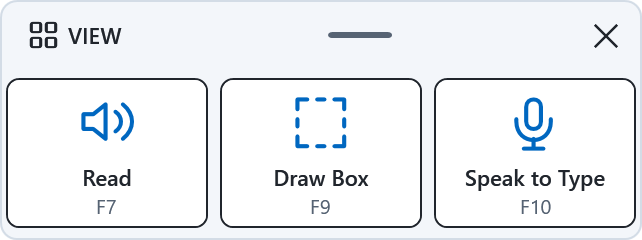
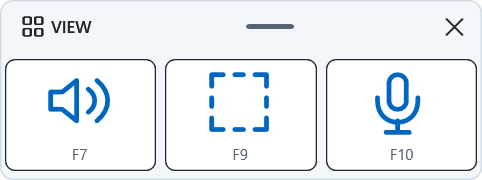
The small WaySpeak bar with three buttons: Read, Draw Box and Speak to Type. For Windows · $4.99 once · No account

Four tools, four buttons

Every button does one clear job. No menus to dig through.

Read Highlighted button

Read Highlighted

Select words in any program and hear them read out loud, with each spoken word highlighted as it goes.

Draw Box and Read button

Draw Box and Read

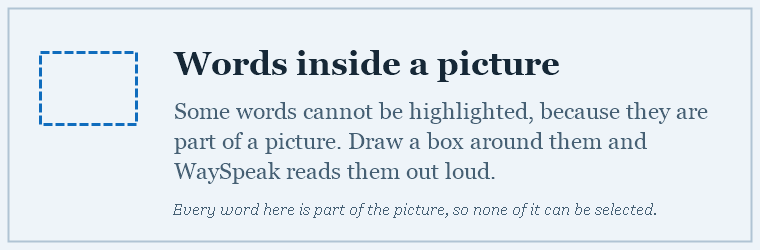
Drag a box around words in an image, a video, or anywhere you can't normally select text — WaySpeak reads it out.

Speak to Type button

Speak to Type

Talk instead of typing. Your words appear in whatever program you're working in, entirely on this PC.

Dictionary button

Dictionary

Select one word to hear it spoken, spelled letter by letter, or read its short, simple meaning.

A closer look

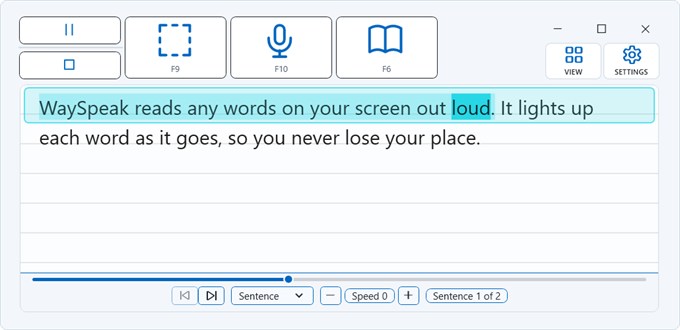
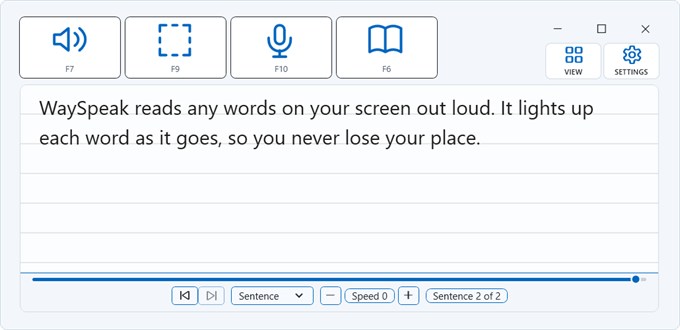
WaySpeak reading a passage out loud with the spoken word lit up.

WaySpeak reads for you.

Select any words on your screen and hear them read out loud, one word at a time, with each word lit as it is spoken, so you never lose your place.

Words inside an image work too. Draw a box around them and WaySpeak speaks those as well.

Sentence 2 of 4
It reads whatever you highlight. The word being spoken lights up and a box follows the line, so you never lose your place.
The WaySpeak dictionary showing a word, what kind of word it is, and a short plain meaning.

confidencenoun

Confidence is the state of trusting something, and being sure that something is going to happen.

A plain-language dictionary. Speak Word says the word. Spell Word says each letter. Read Meaning speaks the meaning out loud. Back returns you to your place — offline, in the same reading area.
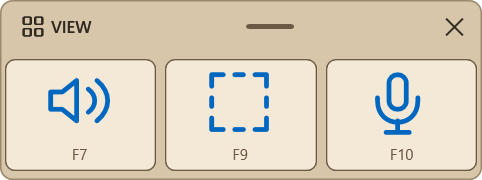
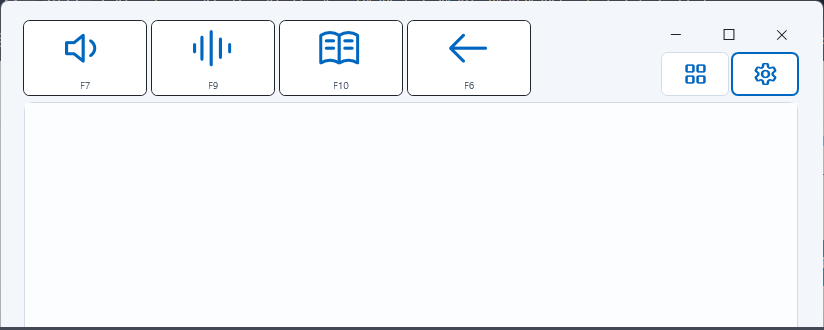
WaySpeak in compact view, a slim bar holding Read, Draw Box and Speak to Type.
Compact view. Switch to a slim bar and keep the whole screen for your work. Read, Draw Box and Speak to Type stay one press away, and anything you select is still read out loud.

Hear it in your language

Choose a language under Speak in in Settings, and everything is read to you in that language. Copy Spanish, French, Chinese or any of 49 languages from a web page and hear it in English, or turn English into another language.

  • Translated on your own PC. Your words never leave it.
  • Each language is a one-time download, and only if you choose it.
  • Spanish, Portuguese and French come with their own voices, Elena and Mateo.

Languages you can choose:

Afrikaans · Arabic · Basque · Bengali · Bulgarian · Catalan · Chinese (Simplified) · Chinese (Traditional) · Czech · Danish · Dutch · English · Estonian · Finnish · French · Galician · German · Greek · Gujarati · Hebrew · Hindi · Hungarian · Icelandic · Indonesian · Italian · Japanese · Kannada · Korean · Latvian · Lithuanian · Malay · Malayalam · Marathi · Norwegian · Persian · Polish · Portuguese · Romanian · Russian · Slovak · Slovenian · Spanish · Swedish · Tamil · Telugu · Thai · Turkish · Ukrainian · Urdu · Vietnamese

Languages in bold have WaySpeak’s own voice. Most others are read by a free voice from Windows. Translations can have small mistakes.

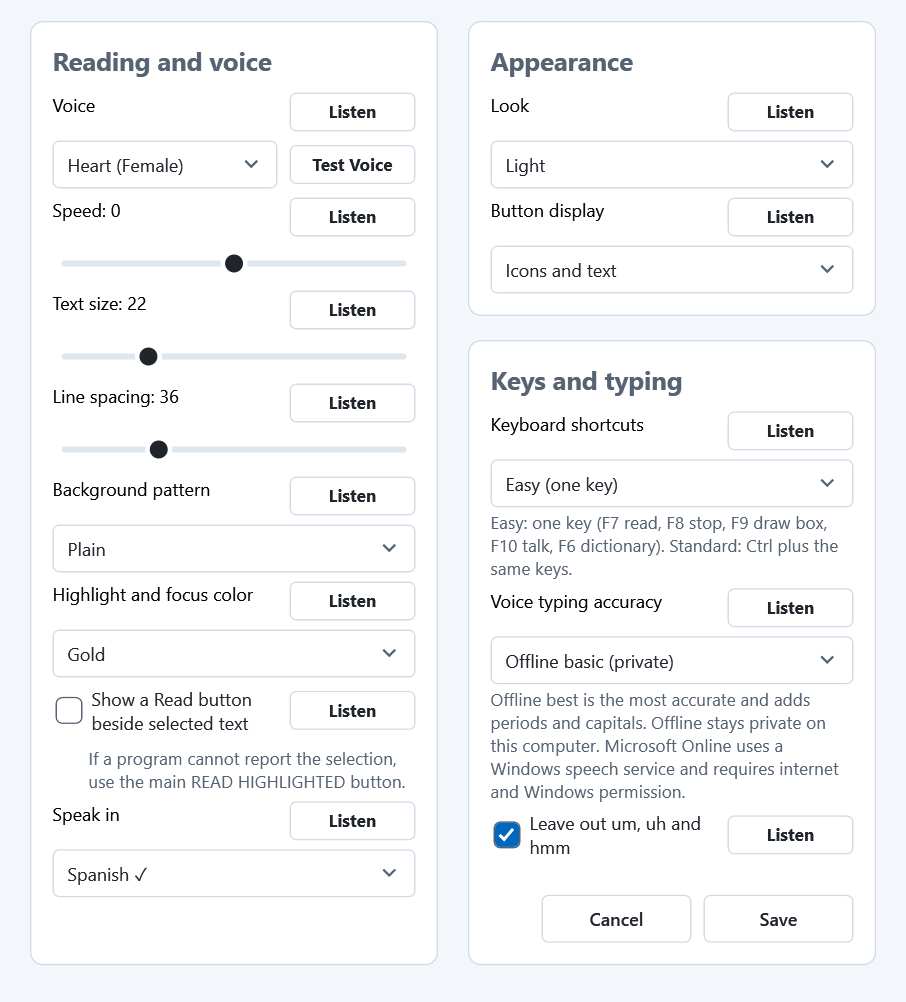
WaySpeak's Settings window. Under Reading and voice, Speak in is set to Spanish, with a check mark.
Speak in, in Settings. Pick it once and leave it. English is the starting choice.

Simple pricing

One price. No subscription, no ads, no in-app purchases.

$4.99 one time
  • Every feature included — reading, dictionary, dictation, and image reading
  • All three natural sounding AI reading voices, Heart, Michael and George, plus the voices already on your PC
  • All three looks, the background patterns and the highlight colors
  • Free updates
  • Works in any program: highlight words in a web page, an email, a document or a form
  • No account, no subscription, and nothing leaves your PC
  • Talk instead of typing, and hear any word spelled out and explained
  • Hear it in your language: about fifty optional languages, each a free one-time download
Get it from the Microsoft Store

Purchases and refunds are handled entirely by the Microsoft Store.

Who it's for

  • Listening while you get on with something else. Put a long article on and carry on with the dishes, the drive or the emails.
  • Hearing your own writing back. Your eyes skip over your own mistakes because they know what you meant. Your ears don't.
  • Getting through it faster. Turn the speed up and take in a long page in a fraction of the time.
  • Resting your eyes. After a day of screens, listen instead of squinting.
  • Words stuck inside an image. A scanned form, a photograph of a letter, a frame of a video. Draw a box and they are read out.
  • Days when reading is hard work. Dyslexia, tired eyes, or a language you are still learning.

WaySpeak was built for people who find reading hard. It turns out a lot of people who don't find it hard want it too.

Why I made WaySpeak

At sixteen a brain injury put me in a coma for three weeks. During that time a quarter of my brain was removed.

Recovery meant starting from the beginning. Walking, speaking, reading and writing all had to be learned a second time.

My disability means relying on software: one app to read text aloud, and another to turn speech into typing. That is what I have been doing for years.

Those programs helped me a lot, and I am thankful for them. But I always had to move between them just to read a letter or answer an email. So I made one that does both, the way I need it to.

Reading and writing still take me more effort than they take most people. WaySpeak is how I keep up, and why I wanted to make it.

I hope it helps you too.

Waymaure Eugene Seuell II, who made WaySpeak. — Waymaure Eugene Seuell II

Private by default

WaySpeak doesn't need an account, doesn't show ads, and doesn't collect or transmit the words you read, dictate, or look up. Everything below runs on your own PC.

  • Speech-to-text (Speak to Type) uses a private, offline model — nothing leaves your computer.
  • The natural sounding AI reading voices, Heart, Michael and George, generate speech on your own computer.
  • The dictionary is an offline word list installed with the app — no internet lookups.
  • Draw Box and Read uses Windows’ own on-device image-reading feature.
  • Translation for Speak in happens on your own PC. The internet is used only once, to download a language you choose.
  • Your settings are saved only in a file on your PC, never uploaded.
The one optional exception: if you choose Microsoft Online for voice typing accuracy instead of the private offline model, your speech audio is sent to Microsoft's own Windows speech service and is covered by Microsoft's privacy policy, not WaySpeak's. It's off unless you turn it on.

Frequently asked questions

Does WaySpeak need the internet?

No. Reading, the dictionary, offline voice typing, the natural sounding AI voices, and image reading all work with no internet connection. Translation works offline too, once a language is downloaded; the download itself needs the internet, one time. The only feature that always needs internet is the optional "Microsoft Online" voice-typing choice, and it's off by default.

What Windows versions does it support?

WaySpeak runs on Windows 10 (version 1809 or newer) and Windows 11.

Can WaySpeak read other languages?

Yes, 49 of them, from Arabic and Chinese to Spanish and Vietnamese. Under Speak in in Settings, choose the language you want to hear. With English, the starting choice, words in any of those languages are translated on your PC and read to you in English. Choose another language, for example Spanish, and English is read to you in that language. Each language is a free one-time download that WaySpeak asks about first. Spanish, Portuguese and French have WaySpeak's own voices; most other languages use a free voice from Windows. Translations can have small mistakes.

Do I need to create an account?

No. WaySpeak has no account, no sign-in, and no online profile of any kind.

Can I change how WaySpeak looks and reads?

Yes. You can change the text size, the colors, the spacing and the highlight style, choose one of three looks, and turn the keyboard shortcuts on or off.

Where are my settings stored?

In a small file in your own Windows user folder. Nothing is uploaded anywhere.

All feedback is helpful

WaySpeak is made by one person, and it gets better when people tell me what they think. Something you like, an idea for a new feature, a question, or something that is not working: I would love to hear it.